
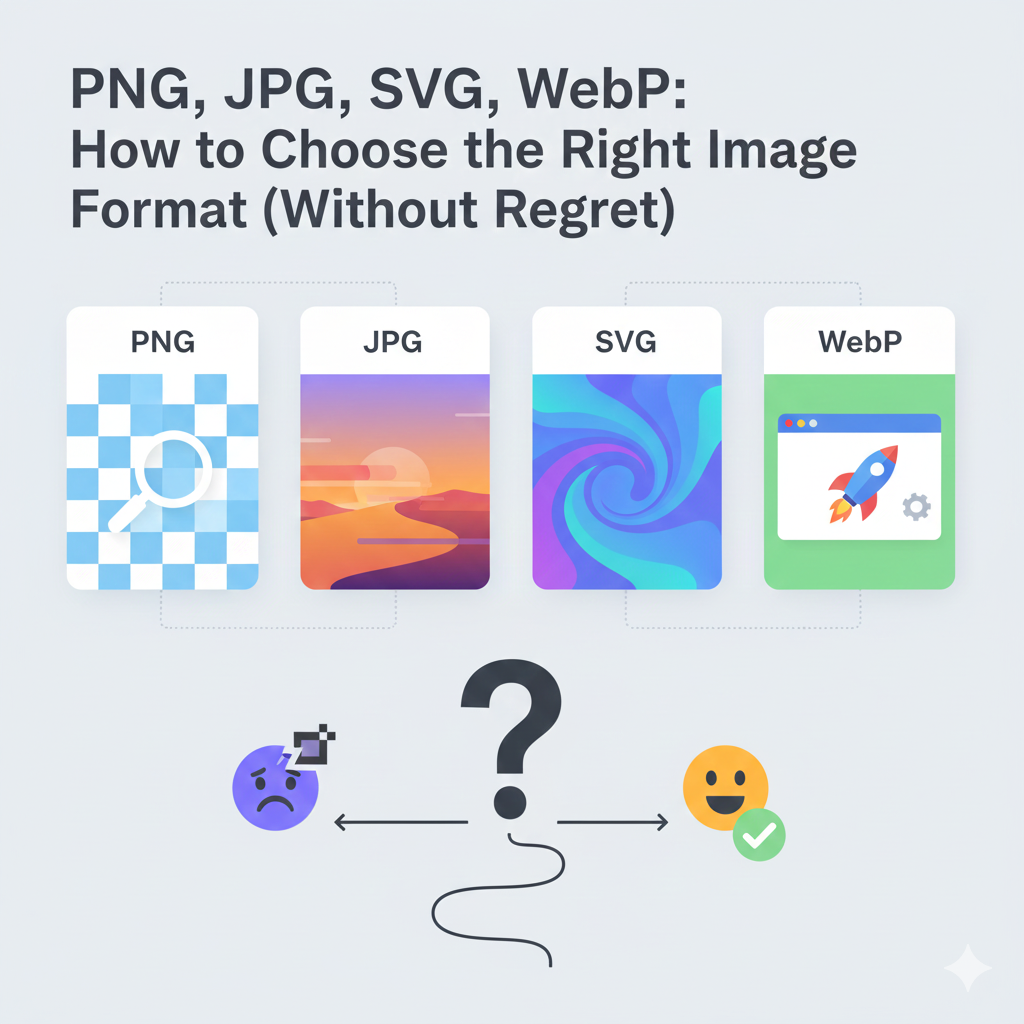
PNG, JPG, SVG, WebP: How to Choose the Right Image Format (Without Regret)
Most people pick image formats by habit, not logic. Screenshot something? PNG. Photo? JPG. Logo? "I think SVG is the fancy one?"
This works until it doesn't. Until your website loads like it's 2005 because you exported everything as 4MB PNGs. Or your logo looks faxed because you used JPG. Or you spent hours making an SVG version of a photograph. (Don't do that.)
Here's what you actually need to know about image formats.
Raster vs. Vector: The Only Theory You Need
Every image format falls into one of two camps.
Raster images are made of pixels, tiny colored squares in a grid. Think mosaic. Zoom in far enough and you see the individual tiles, then things get blurry. JPG, PNG, WebP, and GIF are all raster formats.
Vector images are mathematical instructions. "Draw a line from here to here, fill this shape with blue." Think recipe. No matter how much you zoom, the computer recalculates and redraws at perfect sharpness. SVG is the main vector format for the web.
What this means in practice:
- Vectors scale infinitely. A vector logo looks perfect at 20 pixels or 2000 pixels.
- Rasters are locked to their resolution. A 100×100 image stretched to 1000×1000 looks terrible.
But vectors only work for certain types of images. You can't vectorize a photograph. There's no mathematical formula for "the way light hits your CEO's face in the team photo."
Here's a simple test: if you could reasonably describe an image to someone and they could recreate it ("a blue circle with a white letter F inside"), it can be a vector. If you'd need to describe millions of individual color values, stick with raster.
The Formats, Explained Simply
JPG
Best for: Photographs and complex images with lots of colors.
JPG uses "lossy" compression, which means it throws away data to shrink files. A 10MB camera photo becomes a 500KB JPG that looks nearly identical. The algorithm is clever about what it discards, prioritizing information your eyes actually notice.
The tradeoff: Each time you edit and save, you lose more quality. Open a JPG, tweak the brightness, save it, and you've just degraded it slightly. Do this ten times and you'll start seeing artifacts. JPG also doesn't support transparency, so every pixel needs a solid color.
Use it for: Product photos, headshots, scenic images, blog headers, any photograph.
Skip it for: Logos, text, icons, screenshots, or anything with sharp edges. The compression algorithm smears hard lines.
PNG
Best for: Graphics with sharp edges, text, and transparency.
PNG uses "lossless" compression, meaning files get smaller without losing any data. Every pixel stays exactly as you created it. Edit and save as many times as you want; the quality never degrades.
PNG also supports transparency (alpha channel), so you can have a logo that sits cleanly on any background color without a white box around it.
The tradeoff: Files can get enormous for photographs. A photo saved as PNG might be 5× larger than the same JPG with no visible improvement. You're storing information the human eye can't even distinguish.
Use it for: Screenshots, diagrams, logos on transparent backgrounds, anything with text or crisp lines, working files you'll edit repeatedly.
Skip it for: Photographs or images with complex gradients. You're paying in file size for quality you won't see.
SVG
Best for: Logos, icons, and simple illustrations that need to scale.
SVG is actually code. It's XML that describes shapes and paths. Because it's math, not pixels, it renders perfectly at any size.
The tradeoff: Only works for graphics you can describe mathematically. Photographs? Impossible. Complex illustrations with tons of detail? The file might end up larger than a raster equivalent.
Use it for: Logos, icons, charts, diagrams, simple illustrations.
Skip it for: Photographs, complex realistic images, or graphics so intricate the SVG balloons in size.
WebP
Best for: Web images where you want smaller files without sacrificing quality.
Google designed WebP specifically for the web. It supports both lossy compression (like JPG) and lossless compression (like PNG), plus transparency and even animation. In practice, WebP files run about 25-35% smaller than equivalent JPGs or PNGs at the same visual quality.
The tradeoff: Very old browsers don't support it. But as of 2024, global browser support exceeds 97%. The main holdouts are Internet Explorer (dead) and some older Safari versions (increasingly rare).
Use it for: Web performance optimization. Many sites now serve WebP as the primary format with automatic fallbacks.
Skip it for: Email signatures, documents going to unknown recipients, offline files, or situations where you can't control the viewing environment.
Real-World Decisions
Theory is nice, but you're here for answers. Here's how to handle the situations you'll actually face.
Your Company Logo
Answer: SVG.
Your logo will appear at 16 pixels (favicon), 200 pixels (website header), 2000 pixels (conference presentations), and potentially printed on billboards. SVG handles all of these perfectly with a single file. The same logo scales from tiny to massive without a single fuzzy pixel.
For places that don't accept SVG (email signatures, certain social platforms, some legacy systems), export a high-resolution PNG at the specific size you need.
Charts and Graphs
Answer: SVG if you can, PNG if you can't.
Charts are exactly what SVG excels at: geometric shapes, clean lines, text. If your tool only exports raster, use PNG to preserve sharp edges. Never JPG. Your crisp lines will turn into fuzzy smears.
Screenshots
Answer: PNG.
Screenshots contain sharp UI edges, text, and interface elements that need to stay crisp. PNG preserves every pixel exactly. JPG would smear the text and create visible artifacts around buttons and icons.
For web use, convert to WebP for 25-30% smaller files while keeping the same crispness. And please, crop your screenshots to show only what matters. Nobody needs to see your 47 open browser tabs.
Product Photography
Answer: JPG or WebP.
Photos have millions of colors and subtle gradients, exactly what lossy compression handles well. Use 80-90% quality in your export settings. WebP gives you even smaller files at the same visual quality.
Icons on Your Website
Answer: SVG.
Icons are simple shapes that need to stay sharp on regular and retina displays. Most icon libraries provide SVGs by default.
User-Uploaded Photos
Answer: JPG or WebP, processed on your server.
You can't control what users upload. Convert everything to a reasonable size and quality on your server. Don't serve that raw 8MB photo someone uploaded from their phone.
Infographics
Answer: Depends on complexity.
Simple shapes and text? SVG. Photos embedded with intricate illustrations? PNG or WebP.
Marketing Assets
Answer: PNG for graphics, JPG for photos.
Social platforms compress aggressively. Starting with PNG for graphics preserves quality through their processing. Photo-heavy content is fine as JPG.
When SVG Is Overkill
SVG gets recommended a lot, sometimes too enthusiastically. Here's when it's not the right choice.
The image is too complex. If an illustration has thousands of gradient points, bezier curves, and intricate details, the SVG file might balloon to 2MB while a PNG sits at 200KB. You've lost the vector advantage entirely.
You're only displaying at one size. If an icon will only ever appear at 24×24 pixels on your site, a carefully crafted 24×24 PNG works perfectly fine. The infinite scaling superpower is irrelevant when you don't need to scale.
The tooling doesn't support it. Email clients notoriously handle SVG poorly. Some social platforms strip it. Certain legacy systems choke on it. Don't fight your tools. Export to PNG when SVG causes problems.
You're working with photographs. This should be obvious but frequently isn't: SVG fundamentally cannot represent photographs. It's math describing shapes, not pixels capturing light. If you see a "vectorized photo," someone either auto-traced it into an artistic interpretation or made a mistake.
Performance: What Actually Matters
File size directly impacts web performance. A page with 2MB of images loads noticeably slower than one with 200KB, especially on mobile connections.
Here's the rough hierarchy from smallest to largest for typical web images:
- WebP (lossy) - Smallest for photos
- JPG (optimized) - Slightly larger, universal support
- WebP (lossless) - Smallest for transparent graphics
- PNG (optimized) - Larger than WebP, universal support
- SVG - Tiny for simple graphics, potentially huge for complex ones
- PNG (unoptimized) - Often needlessly large
A real example: a typical blog hero image might be 800KB as an unoptimized PNG, 180KB as an optimized JPG, and 130KB as WebP. Same visual quality, very different load times.
For websites, serving WebP with JPG/PNG fallbacks hits the sweet spot between performance and compatibility.
Quick Reference
| Scenario | Format | Why |
|---|---|---|
| Logo | SVG | Scales perfectly |
| Icon | SVG | Sharp at any size |
| Photo | JPG or WebP | Small files, many colors |
| Screenshot | PNG | Preserves sharp text |
| Chart/Graph | SVG | Clean lines, scalable |
| Transparent graphic | PNG or WebP | Alpha channel support |
| Email signature | PNG | SVG support is poor |
| Favicon | SVG + PNG fallback | Modern + compatible |
The Two-Question Test
When unsure, ask:
Does this need to scale to different sizes?
- Yes → SVG (if simple enough)
- No → Raster is fine
Is this a photograph?
- Yes → JPG or WebP
- No → PNG, SVG, or WebP lossless
Two questions. Right choice 90% of the time.
Wrapping Up
Choosing image formats isn't complicated once you see the logic. Vector for scalable graphics. Lossy compression for photos. Lossless for sharp edges and transparency. WebP when you want the best of both.
You don't need to get it perfect every time. Just avoid the obvious mistakes: the 4MB PNG that should've been a 200KB JPG, the fuzzy logo that should've been SVG, the photograph someone tried to vectorize.
Get those right and you're ahead of most people on the internet.
Need to convert between formats? Fix42 has image conversion tools that make format switching painless. No software required.
Kingsley Michael
FounderCreator of Fix42, building free tools that solve everyday digital friction. Passionate about making powerful utilities accessible to everyone without subscriptions or data harvesting.
Share this article
Related Articles
The Format Nobody Wants But Everyone Needs: Why SVG Matters
SVG has a perception problem. It's "too complicated," "not worth it," or "just for designers." But ignoring SVG is costing you money, performance, and user experience. Here's the uncomfortable truth.
Why Your Designer Friend Won't Stop Talking About SVGs
Ever wonder why designers get so excited about SVGs? Here's the non-technical explanation of why vector graphics are actually pretty amazing (and why you should care).
The Great Format Wars: When JPG Met PNG at a WebP Party
A hilarious tale of image formats battling for digital supremacy, browser politics, and why your photos are having identity crises.
Mastering CSV Data Processing
Learn advanced techniques for handling large CSV files efficiently, including best practices for data validation, transformation, and analysis.
Discussion
Start the conversation
Leave a comment
Loading comments...